
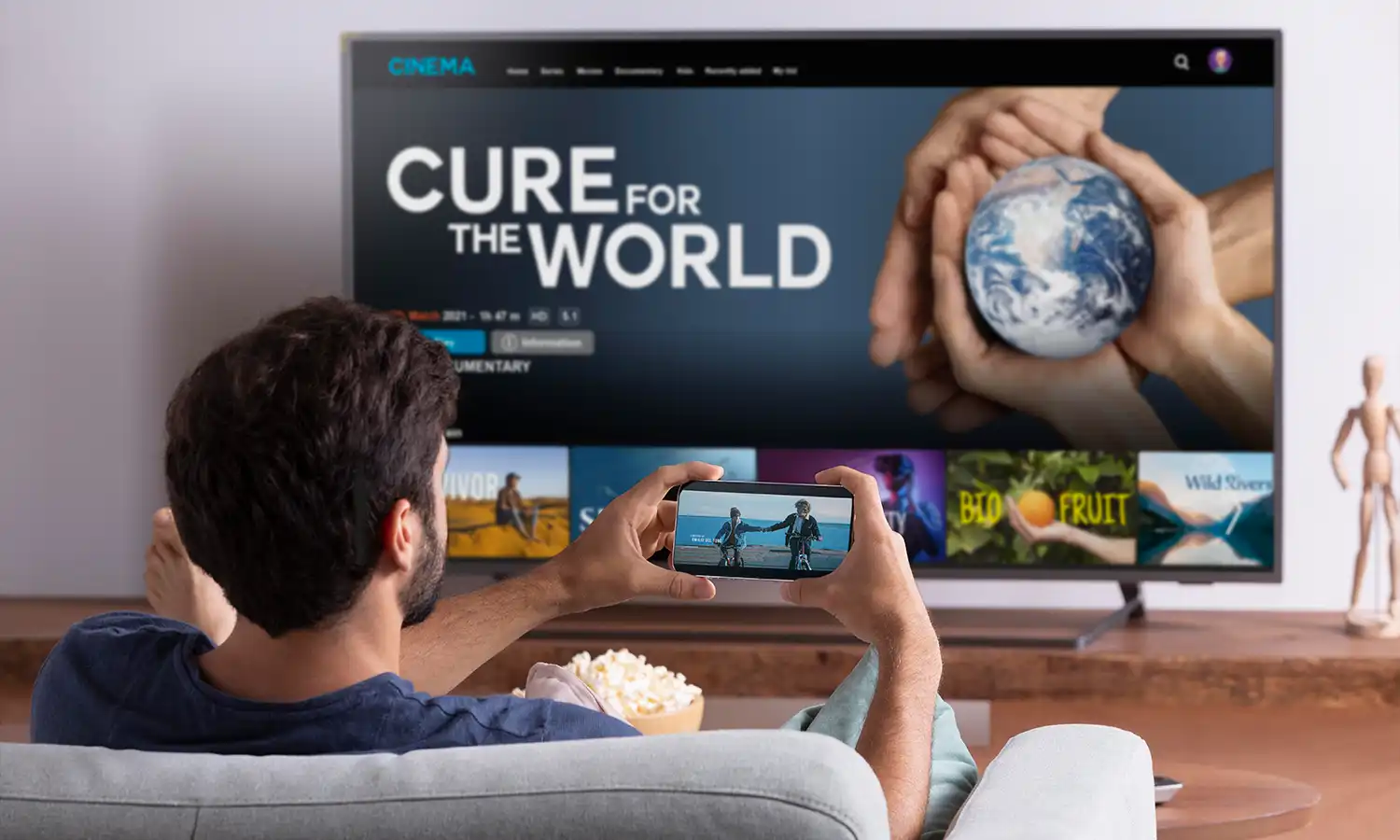

Your Samsung television might boast magnificent screen quality, but if you do not perform a proper Samsung Smart TV IPTV setup, you cannot fully utilize this massive visual potential. Especially on big match days, buffering issues or complicated menus can quickly turn your television enjoyment into a nightmare.
In this comprehensive guide, we explain exactly how to complete your Samsung Smart TV IPTV setup step-by-step in just 5 minutes, without drowning you in technical jargon. With the most up-to-date applications of 2026, get ready to watch thousands of premium channels and a rich VOD (movies/series) archive completely stutter-free.
Why Do You Need a Specific Setup for Samsung TVs?
Unlike many other brands that use Android, Samsung televisions operate on their own proprietary Tizen operating system. While this system is incredibly fast, responsive, and secure, it does not host every single application found on the Google Play Store. Therefore, for a successful Samsung Smart TV IPTV setup, selecting the right player from Samsung’s own app store (Smart Hub) that offers the most stable and buffer-free streaming is a critical step. When the right application is combined with a high-quality IPTV infrastructure, your television transforms into a fully equipped, high-end cinema room.
What Are the Best Apps of 2026?
Before proceeding with a seamless Samsung Smart TV IPTV setup, let’s identify the absolute best applications you can download directly from your television’s store. These applications are the fastest software for reading your M3U links and Xtream API details:
- IPTV Smarters Pro: The industry’s most renowned application with a highly user-friendly interface. It categorizes VOD archives and live channels brilliantly.
- IBO Player: The shining star of recent times. It offers extremely fast channel switching and is easily configured via MAC address.
- DuplexPlay / Flix IPTV: Fully compatible with the Tizen operating system, these are highly stable premium alternatives.
Our Recommendation: If you are doing this for the first time, starting with IPTV Smarters Pro or IBO Player is highly recommended due to the sheer simplicity of their interfaces.
Step-by-Step Samsung Smart TV IPTV Setup
By following the simple steps below, you can complete your Samsung Smart TV IPTV setup process in mere seconds and activate your streams instantly:
Step 1: Download the App to Your Television
- Press the “Home” button on your Samsung remote control.
- Navigate to the “Apps” section from the main menu.
- Click on the Search (Magnifying Glass) icon in the top right corner.
- Type “IBO Player” or “IPTV Smarters” into the search bar and install the application.
Step 2: Learn Your Device Information
When you open the application, two vital pieces of information will appear on the screen:
- Device MAC Address: e.g.,
00:1A:79:XX:XX:XX - Device Key: The password required to log into the application’s website.
Step 3: Upload the M3U Link
This stage is usually done from your smartphone or computer, rather than the TV, saving you from typing long URLs with a remote.
- Go to the official website shown on the application screen (e.g., iboplayer.com).
- Log into the system using the MAC Address and Device Key you see on your TV.
- Click on the “Add Playlist” or “Add M3U” option.
- Paste the M3U Link sent to you by your service provider (e.g., Euromax TV) into the relevant box and save.
- Restart the application on your television. Congratulations, you are all set!
What If the IPTV App Is Not in the Store? (Region Change)
Sometimes, while performing a Samsung Smart TV IPTV setup, you might not find the apps you are looking for (like IBO Player) in the Smart Hub store. This situation stems from the regional store restrictions of the country where your television is located.
The solution is incredibly simple: Change your television’s Smart Hub region. By finding the remote control button combinations suitable for your TV model online (e.g., Mute + Return + Volume Up) and changing the region to “USA” or “Germany,” you can instantly access all hidden and geo-locked IPTV apps. This minor adjustment is a lifesaver for a flawless Samsung Smart TV IPTV setup.
Critical Tips for Uninterrupted and Buffer-Free Streaming
You have executed a perfect Samsung Smart TV IPTV setup, but do not forget these golden rules for a truly buffer-free experience:
- Use a Cable: If possible, connect your television to your modem using an Ethernet cable instead of Wi-Fi. This significantly lowers ping times and eliminates stuttering in 4K streams by preventing data loss.
- Feel the QLED and OLED Difference: Samsung’s superior QLED and OLED technologies are designed for high-resolution content rather than standard broadcasts. Thanks to the genuine 4K Ultra HD channels offered by your provider, you can truly test your TV’s refresh rate and color vibrancy.
- Choose Quality Infrastructure: Even if you own the best television in the world, if the servers of your IPTV provider are weak, the stream will buffer. Always choose services that offer Anti-Freeze technology with high-capacity European servers.
Ready to Start? Test It for Free!
You have learned exactly how to do the installation. Now it is time to test the true power of your television.
Do not waste time with standard broadcasts on the market. Thanks to Euromax TV‘s advanced infrastructure, you can watch derby matches, the latest movies, and national channels with a zero-buffering guarantee. Visit our [24-Hour Free IPTV Trial] page right now or write to our Live WhatsApp Support line from the button in the bottom right corner. Our expert team will help you complete your Samsung Smart TV IPTV setup steps in 5 minutes and start your trial stream immediately.